Put the dated records of a view in Mac Calendar or Reminders, and bring changes made there back to the notes.
The macOS desktop app can sync any view with Mac Calendar: a table, a board, or a calendar. The view’s filters choose the records. Each record with a date becomes an event in one calendar that you choose. When you move or rename an event in Mac Calendar, the note changes too. Mac Calendar also shows the calendars of the accounts you added to macOS, such as Google, iCloud, Exchange and Fastmail, so the events can go to any of them. A view of tasks can sync to a Reminders list instead.
Sync with Mac Calendar is part of BaseStudio Pro. The Obsidian plugin, and the app on Windows and Linux, do not have it.
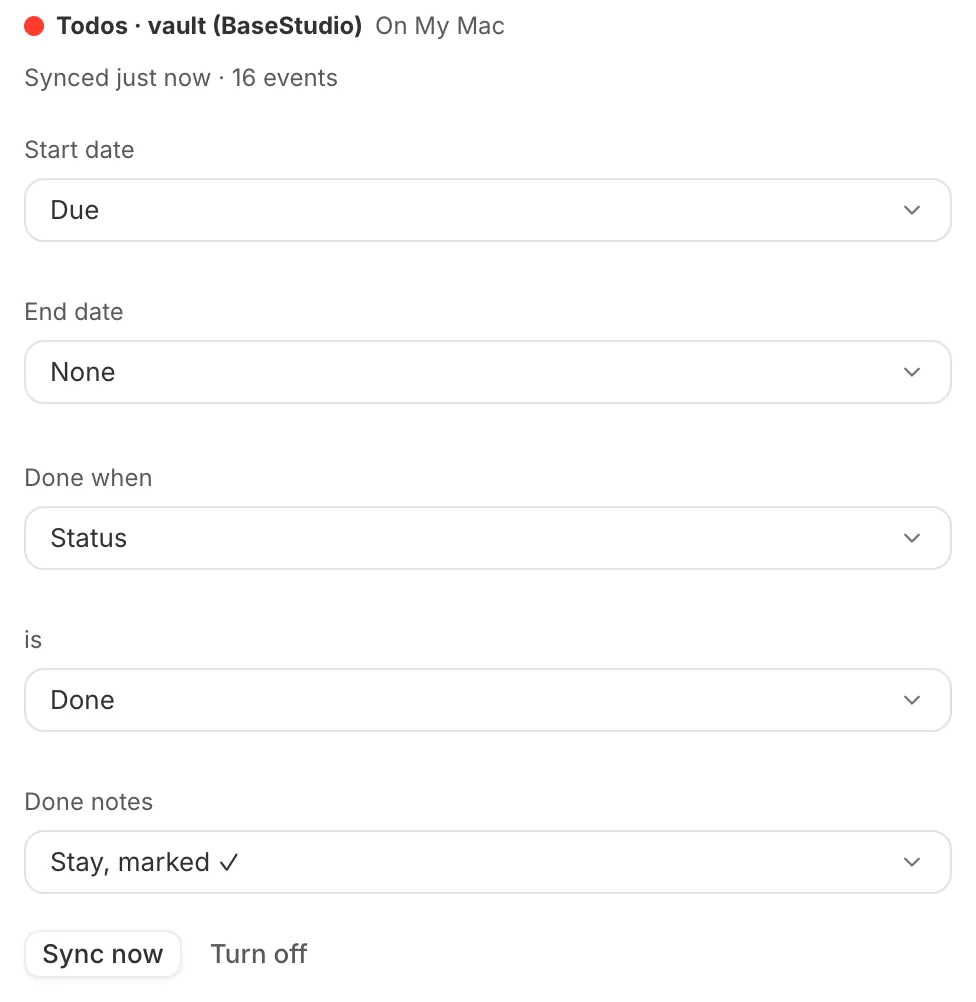
Turn on the sync
Section titled “Turn on the sync”- Open the view, then … in the toolbar, then Sync with Mac Calendar…. To sync another view of the Base, choose it in View. In a calendar view, Calendar in the toolbar also has a Sync with Mac Calendar… link.
- In Sync to, choose Calendar events or Reminders. Select Connect Mac Calendar (or Connect Reminders) and allow full access in the macOS prompt.
- Choose the Start date of the events, and an End date if they have one. In a calendar view, the sync starts with the view’s own dates. In a list of a to-do list, it starts with the date of the Calendar display. You can change them later; the events then move to the new dates.
- Optional: choose Done when, the property that says a task is done. See Done tasks.
- Choose a calendar. Each view syncs with a calendar of its own: BaseStudio adds, changes and removes events there, and a calendar that another view syncs with is not listed. New calendar makes one on this Mac or in iCloud, named after the Base and its vault, for example “Tasks · Personal (BaseStudio)”. For a Google calendar, make the calendar in Google Calendar first, then choose it here. When a sync’s calendar has another name, the settings offer Rename to “…”, the name made from the Base and its vault. If a calendar of that name exists, the view’s name is added, for example “Tasks › Due soon · Personal (BaseStudio)”.
- Select Turn on sync and confirm.
If you did not allow access, select Open System Settings and turn on BaseStudio under Privacy & Security › Calendars (or Reminders).
A view that syncs has a Sync now button in its toolbar. When the sync needs you (access, a conflict, an error), the button reads Mac Calendar needs you and opens the sync’s settings.
One view, or several
Section titled “One view, or several”A sync belongs to a database view or a task list, not to the whole Base. Its filters choose the records. In a to-do list, the shared named view controls presentation; the selected list identifies the sync. To sync every note of a Base, sync a view without filters. A good habit is one view per Base made for the sync, for example “Calendar sync”, with the filters that pick the tasks you want in your calendar.
Several views of a Base can sync, each with a calendar or list of its own. A view that syncs has a calendar mark after its name in the view bar and in the Views menu; the mark is red when the sync needs you.
What the sync does
Section titled “What the sync does”- From BaseStudio to Mac Calendar: every record that the view shows and that has a start date gets an event, with the note’s name as its title. See How dates become events.
- From Mac Calendar to BaseStudio: when you move an event, its note gets the new dates and times. When you rename an event, the note is renamed, and the links to it are updated.
- A deleted event: the note keeps its text and loses its dates, so it leaves the calendar.
- A record that leaves the view: when you delete a note, filter it out or clear its date, its event is removed.
- Undo: each change from Mac Calendar is one step in the Base’s undo history.
Done tasks
Section titled “Done tasks”Done when names the property that says a task is done: a checkbox, or a select and its done value, for example
status is Done. Older files can have values such as 9.Done. BaseStudio fills it in when the view has a select with an option in the done
category, or an option named Done, Complete or Finished.
- Reminders: a done note’s reminder is completed. When you complete a reminder in Reminders, the note gets the
done value. When you mark it not done again, the note gets back the value it had before, for example
Next. - Calendar events: under Done notes, choose Stay, marked ✓ or Leave the calendar. A marked event’s title starts with “✓”. Add or remove the “✓” in Mac Calendar to complete or re-open the note. An event that leaves the calendar comes back when the note is not done.
Sync to Reminders
Section titled “Sync to Reminders”Choose Reminders in Sync to, then a list. Each note with a start date gets a reminder with the note’s name, due on that day, or at that time when the date has one. A timed reminder alerts at its time. Reminders have no end date, so a Reminders sync has no End date.
From Reminders, a changed due date or title comes back to the note, and so does completion (see Done tasks). A reminder whose due date you remove, or that you delete, takes the dates off its note.
How dates become events
Section titled “How dates become events”| Start | End | The event in Mac Calendar |
|---|---|---|
2026-10-26 |
none | All day on 26 October |
2026-10-26 |
2026-10-28 |
All day from 26 to 28 October (3 days) |
2026-10-26 |
2026-10-28T10:00 |
All day from 26 to 28 October: the start has no time |
2026-10-26T10:00 |
none | 10:00 to 11:00 on 26 October (one hour) |
2026-10-26T10:00 |
2026-10-26T11:30 |
10:00 to 11:30 on 26 October |
2026-10-26T22:00 |
2026-10-27T01:00 |
22:00 on 26 October to 01:00 on 27 October |
2026-10-26T10:00 |
2026-10-28 |
All day from 26 to 28 October: the end has no time |
2026-10-26T10:00 |
2026-10-26T09:00 |
10:00 to 11:00: an end before the start counts as none |
A change in Mac Calendar comes back in the same form. A note with a date only gets a date only, unless you give the event a time: then the note gets the time too. Turning a timed event into an all-day event removes the time from the note. Without an End date, an event is one hour long, or one day. A longer event made in Mac Calendar cannot come back whole: the note gets the new start, the sync shows a message, and the event goes back to one hour or one day.
Each synced note gets a calendar-sync-id property. It links the note to its event, also after a rename. It is a
system property: BaseStudio does not show it in a table, the record panel or the column list, also when a view’s column
order names it. Do not change or remove it. To read it, run basestudio query <base> --columns note.calendar-sync-id.
Each event holds a basestudio:// link with the note’s name and folder. Select the link in Mac Calendar to open the note in
BaseStudio.
The sync runs while BaseStudio is open: after a change in the Base, after a change in Mac Calendar, when the Mac wakes, and every 10 minutes. Sync now runs it at once. Closing the windows keeps BaseStudio and its syncs running; quitting it stops them.
To sync also when you did not open BaseStudio, turn on Settings › Mac Calendar › Sync in the background. While a view syncs, macOS then opens BaseStudio at login without a window. Select BaseStudio in the Dock to open your windows. If macOS asks you to allow it, turn on BaseStudio in System Settings › General › Login Items.
Conflicts
Section titled “Conflicts”When the same thing changes in the note and in Mac Calendar before a sync, BaseStudio changes neither. The view’s sync settings show the conflict with both values. Select Keep note or Use Calendar (Use Reminders for a Reminders list; Clear dates when the event or reminder was deleted).
If a sync would remove many events or clear the dates of many notes at once, it asks you first.
Things to know
Section titled “Things to know”- Time zones: dates in notes have no time zone. A new event uses the Mac’s time zone, and an event keeps its time zone afterwards.
- One Mac per view: turn on the sync of a view on one Mac only. Two Macs keep the same events, but your vault sync can then make conflict copies of notes.
- A note in two synced views has an event in each calendar. A change to one event changes the note, and then the other event. Deleting one of the events removes the note’s dates, so the other event goes too. The sync settings say how many notes two views share.
- Repeating events are not synced. If you make an event repeat in Mac Calendar, BaseStudio stops changing it.
- Turn off: select Turn off in the view’s sync settings, and choose whether to remove the events. The notes keep their dates. Settings › Mac Calendar lists every view that syncs, also one whose view or Base is gone. Turning a sync off there keeps its events.