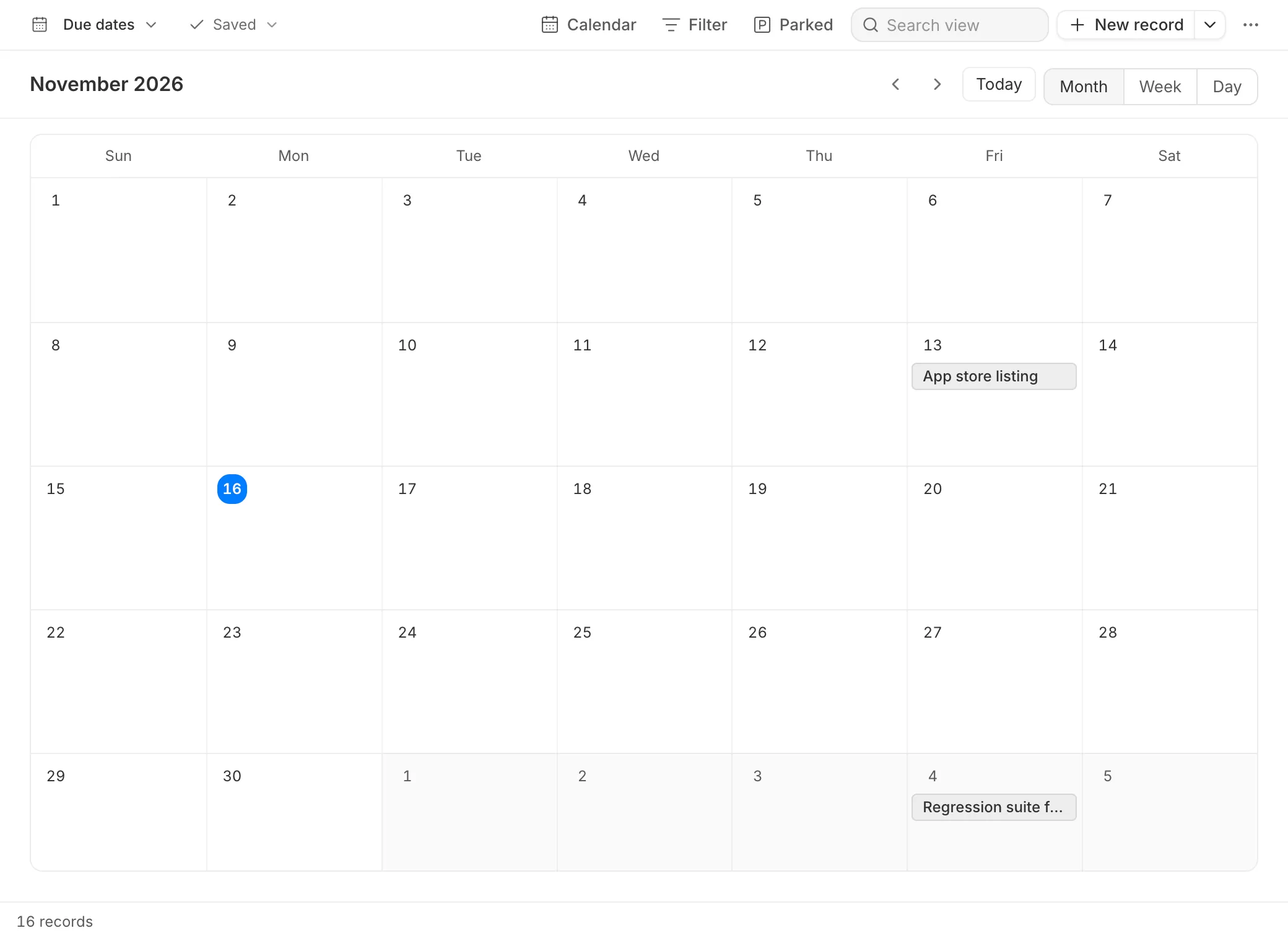
A calendar shows each record on the day of its date. A record with a start date and an end date covers each day between them.
Set up a calendar
Section titled “Set up a calendar”In the calendar settings:
- Start date and End date: the date properties of each event. A date and time property puts the event at its hour. When you choose a start date and the view has no end date, the matching end date is chosen with it.
- Opens at: month, week or day, until you choose another one in the view. The one that you choose is kept on this computer.
- Week starts on: Sunday or Monday.
- Person on events: a property whose value shows on each event as initials, such as an owner.
- Color by: Automatic (status), Neutral, or a property whose option colors color the events.
- Week and day show: All hours, or only the Working hours from Work starts to Work ends.
Use the calendar
Section titled “Use the calendar”- Month: each day shows its events. When a day has more events than it can show, it shows +N more.
- Week and day: an hour grid with half-hour slots, and a row at the top for events that last all day.
- Move an event: drag it to another day or time. It keeps its length.
- Add a record: select a day or an hour. The new record gets that date.
- Select an event to open its record.
On a phone, the calendar shows Month and Day only. See BaseStudio on mobile.
Calendar Bases views
Section titled “Calendar Bases views”BaseStudio also opens a view made with the Calendar Bases plugin for Obsidian as a calendar. Its start date, end date
and first day of the week stay in the plugin’s own settings, so both show the same calendar. BaseStudio keeps its other
calendar settings in the view’s basesStudio block.
Sync with Mac Calendar
Section titled “Sync with Mac Calendar”In the macOS app, a calendar view, or any other view, can put its events in Mac Calendar (also a Google or iCloud calendar added to macOS), and changes made there come back to the notes. See Sync with Mac Calendar.