Show a searchable list of records beside the full page of one record, with a layout that you design.
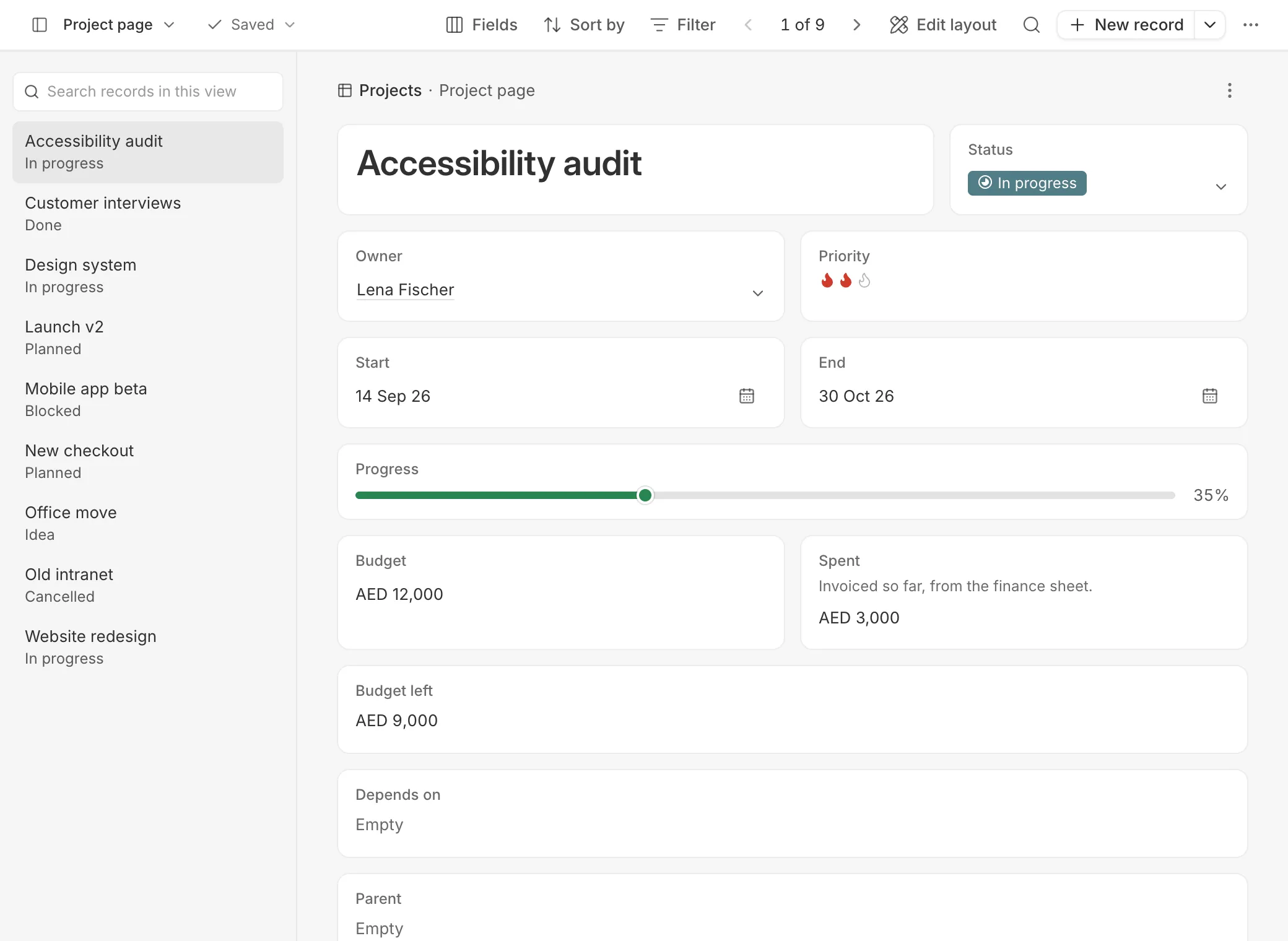
The detail view shows a list of records at the side, and the page of the selected record. Use it to read and edit one record at a time with all its properties.
Use the detail view
Section titled “Use the detail view”- Search the list, then select a record to show its page.
- Edit the properties and the note body on the page. A Linked from section below the properties shows incoming links from other notes and Bases.
- Right-click a record in the list (or press Shift+F10) to open it, duplicate it, copy a link to it, show its file, open it in Obsidian, copy its file path, or move it to the Trash. Undo brings back a record that you moved to the Trash.
Edit the layout
Section titled “Edit the layout”Select Edit layout to change the page:
- Drag a field to a new place.
- Drag the note body above, below or between the fields. It always takes a full row.
- Make a field half the width, so that two fields share a row.
- Hide a field or the note body.
Under Quick styles, choose a style for the page: Blocks, Plain, Columns, Compact or Note with fields beside. Columns shows three columns on a wide page, two on a narrower page, and one column on a narrow page. In Blocks and Compact, a half-width field shares its row with the next half-width field.
The note body is in the list of fields in the side panel. In Note with fields beside, the note body has a column of its own and does not move.
Under Controls, show or hide the Record list, the Hidden fields expander and the Column descriptions. Record list tag sets a property that shows as a tag at the right of each name in the record list, for example a category or a status. Record list text sets the line below each name: a property, or Note preview for the first words of the note.
A Base can keep more than one detail layout. Save a layout with a name, then choose it in another detail view. You can rename and delete saved layouts.