A to-do list is a table in a .basestudio database. It has a fixed set of task fields and can have custom fields too.
The desktop app and Obsidian plugin can create and edit it, including in Obsidian on mobile.
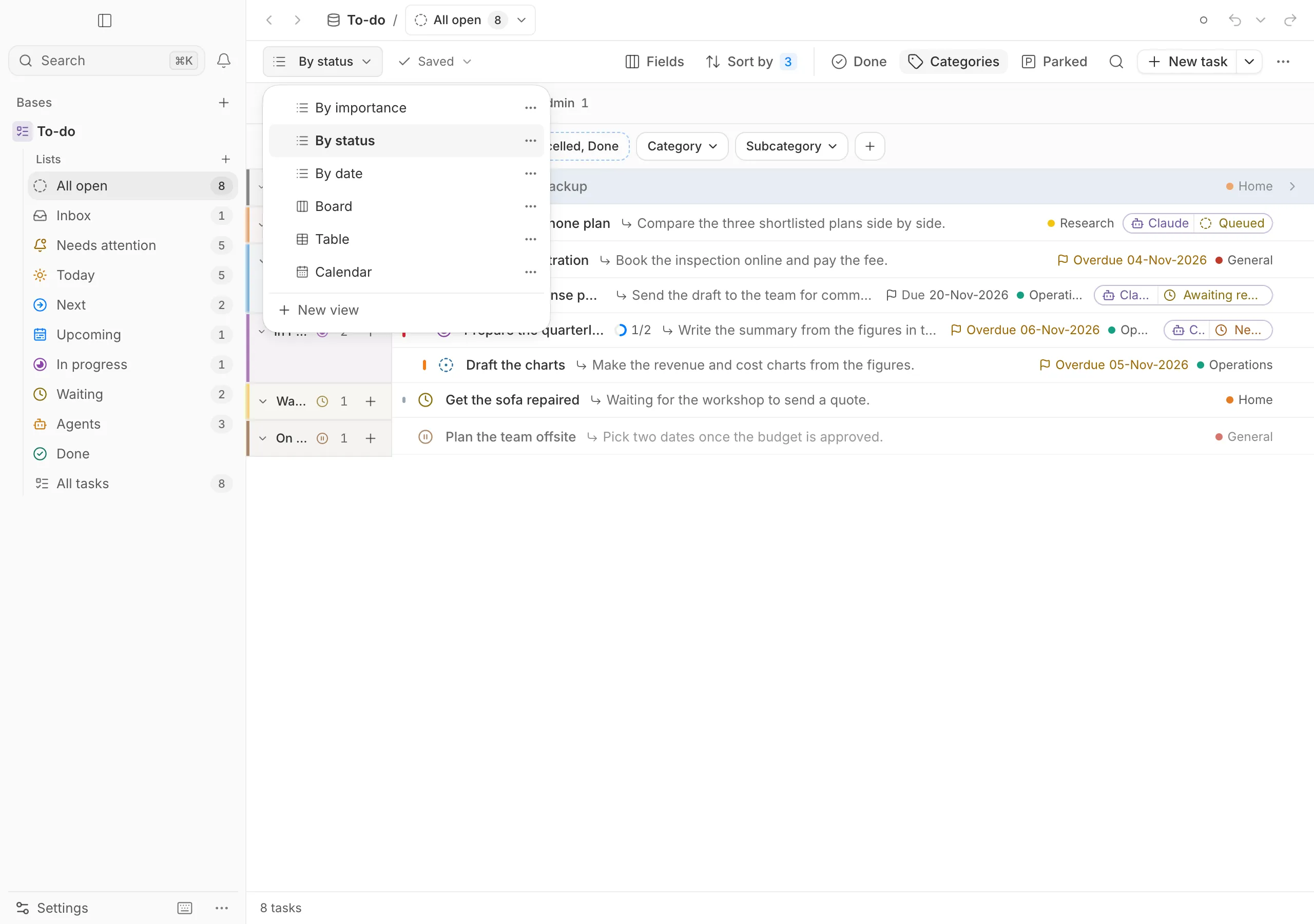
Lists choose which tasks you see. Views choose how you see them. Select a list in the sidebar, then a named view in the toolbar. On a phone, use the list and view pickers.
Start a to-do list
Section titled “Start a to-do list”In New Base, choose To-do list, give it a name and choose where to save the database. Include example records is off by default. The new to-do list opens on All open.
To convert existing records, choose Turn into a to-do list in the Base’s menu. Setup shows the fields it will reuse
or add and the status mappings before you confirm. A database table keeps its records. A .base file is copied with
its records into a new database; the source notes stay in place and are not synchronized with the copy. Read the
preview’s destination and skipped-file list. In Obsidian, this action is also in the file explorer menu of a .base
file and the command BaseStudio: Turn current Base into a to-do list.
To return to database mode, use basestudio tasks-setup "Tasks.basestudio" --off. This keeps the fields and records and turns the lists
into database views. See Command line.
Task fields
Section titled “Task fields”The standard fields cannot be deleted or changed to an incompatible type. You can add custom fields and change which fields a view shows.
| Field | Purpose |
|---|---|
| Title | The task name. |
| Status | Unclassified, Scheduled, Next, In Progress, Waiting, On Hold, Cancelled or Done. |
| Next Step | What to do next. |
| Context | Why the task exists and what is known. |
| Importance | Critical, High, Low or Optional. |
| Scheduled Date | The day to do the task. |
| Due Date | The deadline. |
| Category | Work, Personal or Admin. |
| Subcategory | A part of the category. |
| Assignee | The person responsible for the task. |
| URL | A web link. |
| Working Folder | The folder with the work. |
| Master File | The file with the task details. |
| Waiting On | The person or thing the task waits for. |
| Waiting Since | Set when the task starts waiting; cleared when it stops waiting. |
| Follow-up Date | When to check the task again. |
| Done Date | Set when the task closes; cleared when it opens again. |
| Created Date | Set by the app when the task is created. |
| Parent Task | The parent of a subtask. |
| Activity | Comments and agent reports, with their time and author. |
| Agent Assigned | The agent asked to work on the task. |
| Agent Status | Queued, Working, Needs you, Awaiting review or Done. |
| Agent General Instructions | The agent’s lasting instructions for the task, followed on every run. |
| Message to Agent | A new request or update for the agent. |
Assignee and Agent Assigned have separate purposes. A person can remain responsible while an agent does the work. Agent fields are part of every to-do list.
Lists in the sidebar
Section titled “Lists in the sidebar”Core lists have fixed names and filters. Add filters to narrow one, or choose Save as new list to make a custom list with those filters. Core lists can be hidden, but cannot be renamed or deleted. Hidden lists shows them again.
| List | Tasks it selects |
|---|---|
| All open | Tasks outside the done status category. |
| Inbox | Unclassified tasks. |
| Needs attention | Open tasks with an overdue due date, a follow-up due, or Agent Status Needs you or Awaiting review. |
| Today | Tasks scheduled or due by today; done tasks are hidden unless you show them. |
| Next | Next tasks with no Scheduled Date. |
| Upcoming | Open tasks scheduled or due after today and within the next seven days. |
| In progress | Tasks with Status In Progress. |
| Waiting | Tasks with Status Waiting or On Hold. |
| Agents | Open tasks with a nonempty Agent Status other than Done. |
| Done | Tasks in the done status category, including Cancelled. |
| All tasks | Every task. |
The sidebar counts open tasks. Empty lists and the Done list have no count. Custom lists appear after the core lists. Right-click a list to open, duplicate, pin or copy a link to it. Show in view chooses the named view it uses. New list from this one copies its filters. Custom lists also have Rename and Delete…; deleting a list keeps its tasks. Done in the toolbar shows or hides done tasks for the selected list (in All open, it lifts the list’s closed-status filter so done tasks appear too). The list’s other filters still apply.
To put a task aside without changing its status, park it: press P, choose Park in its menu, or select the Park button in the task’s panel. A parked task leaves every list and every count until you unpark it, or until the day you choose (for a task, Until its scheduled date is one of the choices). Until a record is done… lets you pick another task: the parked task comes back when that task is done. Parked in the toolbar shows the parked tasks of the list, dimmed and marked Parked (or Waiting on the task it waits for); press P on one to unpark it.
Displays
Section titled “Displays”A named view is shared by every list that uses it. It keeps its display, sort, groups, visible fields, filter-bar fields and other presentation settings. A list keeps its own filter values and its selected view.
The default views are By importance, By status, By date, Board, Table and Calendar.
Open the view picker to select a view (on a Mac, hold ⌘ to see numbers and press ⌘1–⌘9 to switch views; hold Ctrl to see list numbers in the sidebar and press Ctrl+1–Ctrl+9 to switch lists). Its … menu renames, duplicates, reorders or deletes a view, changes its layout, or opens its settings. A new view can use any of these displays:
- List: task lines with groups and subtasks.
- Board: task cards in columns.
- Table: the shared spreadsheet grid, with task fields and actions.
- Calendar: tasks on their scheduled or due dates.
- Timeline: task date spans and dependencies.
Use the shared Sort by, Group by and field controls. Groups and sort belong to the named view. List and Table use the same group settings; Show empty groups is off by default. The Board has its own settings in Columns & rows: up to three column levels and up to three row levels (for example, rows by importance and columns by status), Swap columns and rows, and whether empty rows and columns show. The List’s groups do not change the board. See Board.
View edits have a draft with Save view and Reset. Saving a view changes its presentation in every list that uses it. List filters save immediately. See Save a view.
The Categories control narrows the list for the current window. It does not change the list’s saved filters. The filter bar can also show Category, Subcategory and other fields. Its field choices belong to the view; its selected filter values belong to the list.
Read a task
Section titled “Read a task”Select a task line, card, row or event to open the shared record editor. It opens beside the collection on a wide pane and fills a narrow pane. Its sections keep Next Step and Context, Files & Links, Agent, Dates, Assignment and Classification together. Dependencies starts collapsed. Created Date is a system field outside the main date section.
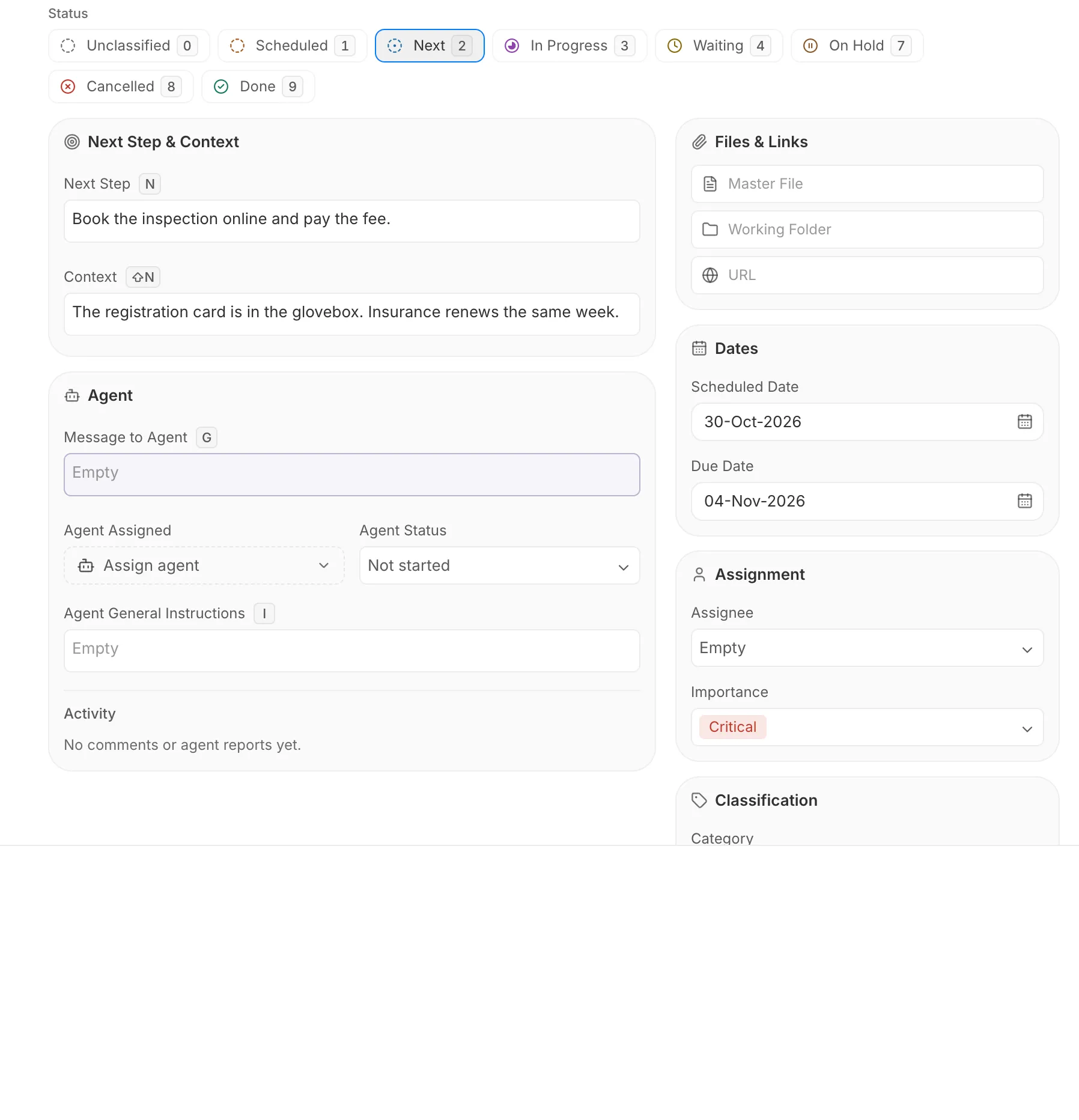
Dates use 14-Nov-2026, Today or Tomorrow. A past due date shows as overdue. A past scheduled date shows as
missed only when the task has not started; in-progress and waiting tasks show the plain scheduled date. Optional tasks
are dimmed and done tasks are crossed out.
Change tasks
Section titled “Change tasks”Changes save automatically. A task stays in place while you edit it, even when its new status, date or group would move it or remove it from the list. Leaving the record applies its new position. A drag moves it immediately. See Saving, undo and recovery.
Right-click a task for its status, importance, dates, category, subcategory, assignee, subtask, rename, duplicate, link and trash actions. The menu shows a key when one is available. In List and Board, J or ↑ moves to the previous task, K or ↓ to the next, F2 renames the task in place, and Enter or Space opens or closes the selected task. Pressing N, Shift+N, G or I opens the task directly at Next Step, Context, Message to Agent or Agent General Instructions, and Ctrl+1–Ctrl+9 picks an option inside an open picker. In Table, a letter is text for the cell: select the row with Shift+Space and then press the letter, or hold Alt (⌥) with the letter on a cell. See To-do list keys.
Select New task or type in Add task in a group. The new task gets its group’s value. Enter keeps the add field ready for another task. Comments use Activity; submit a comment with ⌘Enter or Ctrl+Enter.
Follow-up and agent review
Section titled “Follow-up and agent review”Press F or use Follow up in the task menu to set when to check a task again. This changes Follow-up Date, not Due Date. Leaving a waiting status category or closing the task clears its follow-up date.
For agent work, set Agent Assigned and Agent General Instructions. Adding a Message to Agent when the field was empty queues the task unless the agent is already working. Agent Status Needs you means the agent needs input; Awaiting review means its result needs checking. Press R or use the review action to set that agent result to Done. This does not complete the task itself.
The app does not start an agent by itself. Agents read and update tasks through the command line or MCP server. The Activity log shows comments and reports for the selected list, newest first, and can filter by author.
Subtasks
Section titled “Subtasks”A subtask links to its parent through Parent Task. It has its own status, dates, assignee and Activity.
- Use Add subtask, or type in New subtask under an open task. Enter keeps the field ready.
- Use Make subtask of (which opens a searchable task picker) or Move up a level to change its parent. In List, ← and → fold and expand subtasks.
- A parent shows completed descendants, including those outside the selected list. A subtask shows its parent’s name when the parent is not directly above it.
- Completing a parent with open subtasks asks whether to complete them too. Complete all includes every descendant in one undoable change.
- Turn checklist items into subtasks converts Markdown task-list lines in the note. Checked lines become done subtasks; converted lines leave the note.
Sync with Mac Calendar
Section titled “Sync with Mac Calendar”The macOS desktop app can sync a list with Mac Calendar or Reminders (Pro). In Sync with Mac Calendar…, choose Scheduled, Due or a Span from scheduled to due. Completing a synced reminder completes the task; reopening it restores its earlier status. The Obsidian plugin does not run this sync.
See Mac Calendar sync for permissions, event changes and conflicts.