Use the Project tracker template to plan projects on a board and a roadmap, with linked tasks and a team.
This guide uses the Project tracker template. It makes three Bases that link to each other: Projects, Todos and Team. When you finish, you have a board, a roadmap, budget charts and a page for each project, and the open tasks of each project count themselves.
1. Make the Bases
Section titled “1. Make the Bases”- Select New Base.
- Choose Database. Under Start from, choose Template, then Project tracker. The dialog shows the views and the columns of each Base.
- Turn on Include example records for this walkthrough. It is off by default.
- Type a name, then select Choose folder and create (or Choose file and create for a database).
BaseStudio opens Projects. The sidebar shows Todos and Team below it, as linked Bases.
2. Look at the views
Section titled “2. Look at the views”Projects has these views:
- All projects: a table with status, owner, dates, progress, budget and the formulas below.
- Board: the projects in columns by status. Drag a card to change its status.
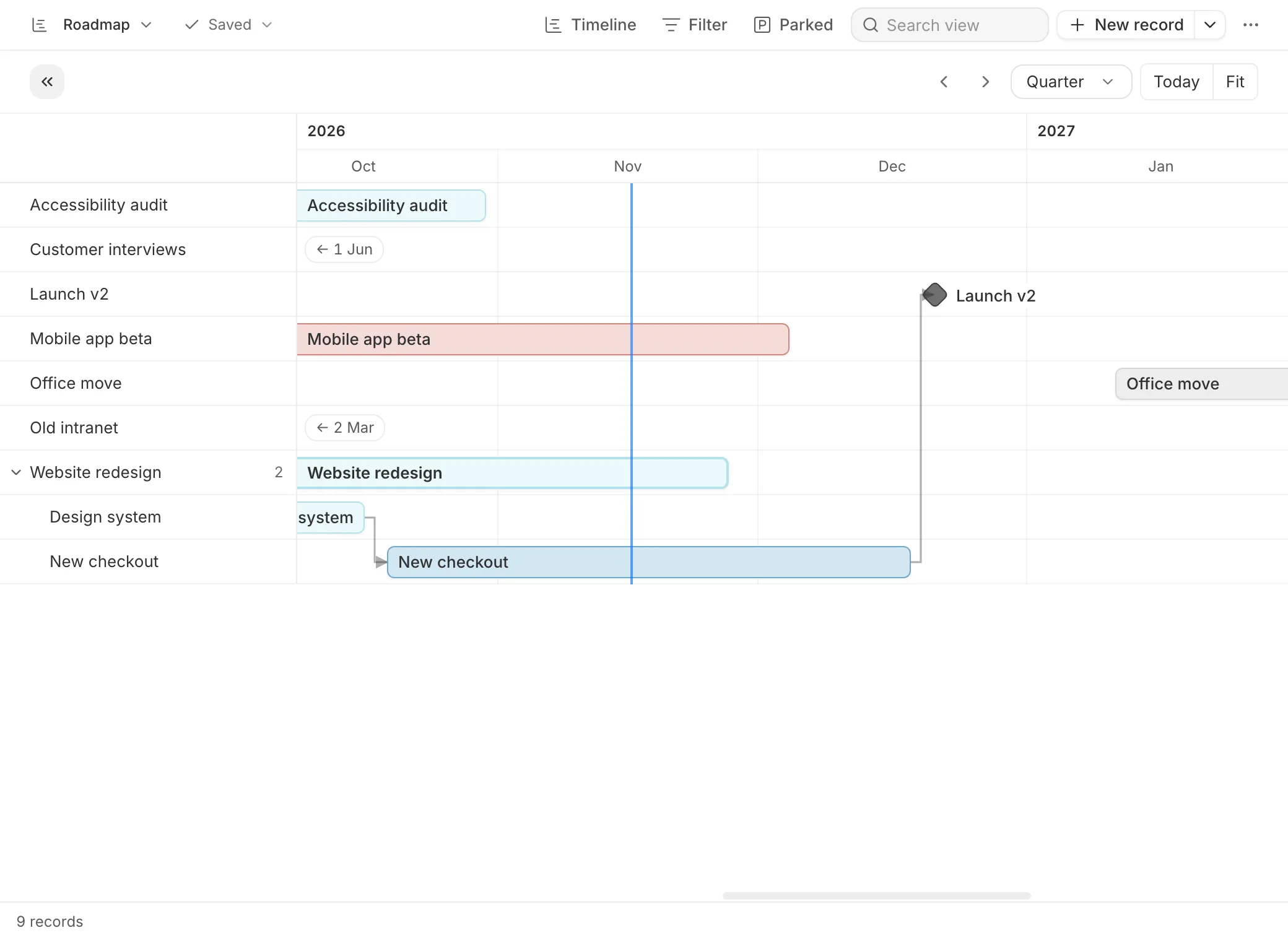
- Roadmap: a timeline from each project’s start to its end, with dependencies.
- Budget by status and Spend over time: charts of the budget and the spending.
- Project page: a detail view with all the fields of one project.
- Active only: a table of the projects that are not done or cancelled.
Todos has an inbox, a kanban board, calendars (This week, Due dates), a Quick add form and charts of the hours. Team lists the people.
3. See how the Bases connect
Section titled “3. See how the Bases connect”- A project’s owner is a link to a person in Team. The owner_role column is a lookup that shows that person’s role.
- A task’s project is a link to a project. In Projects, tasks, open_tasks and estimated_hours are formulas that find the tasks that link to each project, count the open ones and add up their estimates.
- budget_left, burn and days_left are formulas of the project’s own values.
Open a project, then select its tasks or its owner to go to them. Back returns you to the project.
4. Remove the samples and add your work
Section titled “4. Remove the samples and add your work”- Select Remove sample records in the notice above the table, in each of the three Bases.
- Add your team in Team.
- Add a project in Projects. Set its owner, its dates and its budget.
- Add tasks in Todos with Quick add, and set their project.
The formulas and the charts update as you work.
5. Make it yours
Section titled “5. Make it yours”- Add a status: open the menu of the status column, select Edit column…, and add an option with a color and a status category. The board gets a new column.
- Color late projects: add a conditional formatting rule on days_left that is less than 0.
- Make a template for one kind of project, such as a client project. See Record templates.