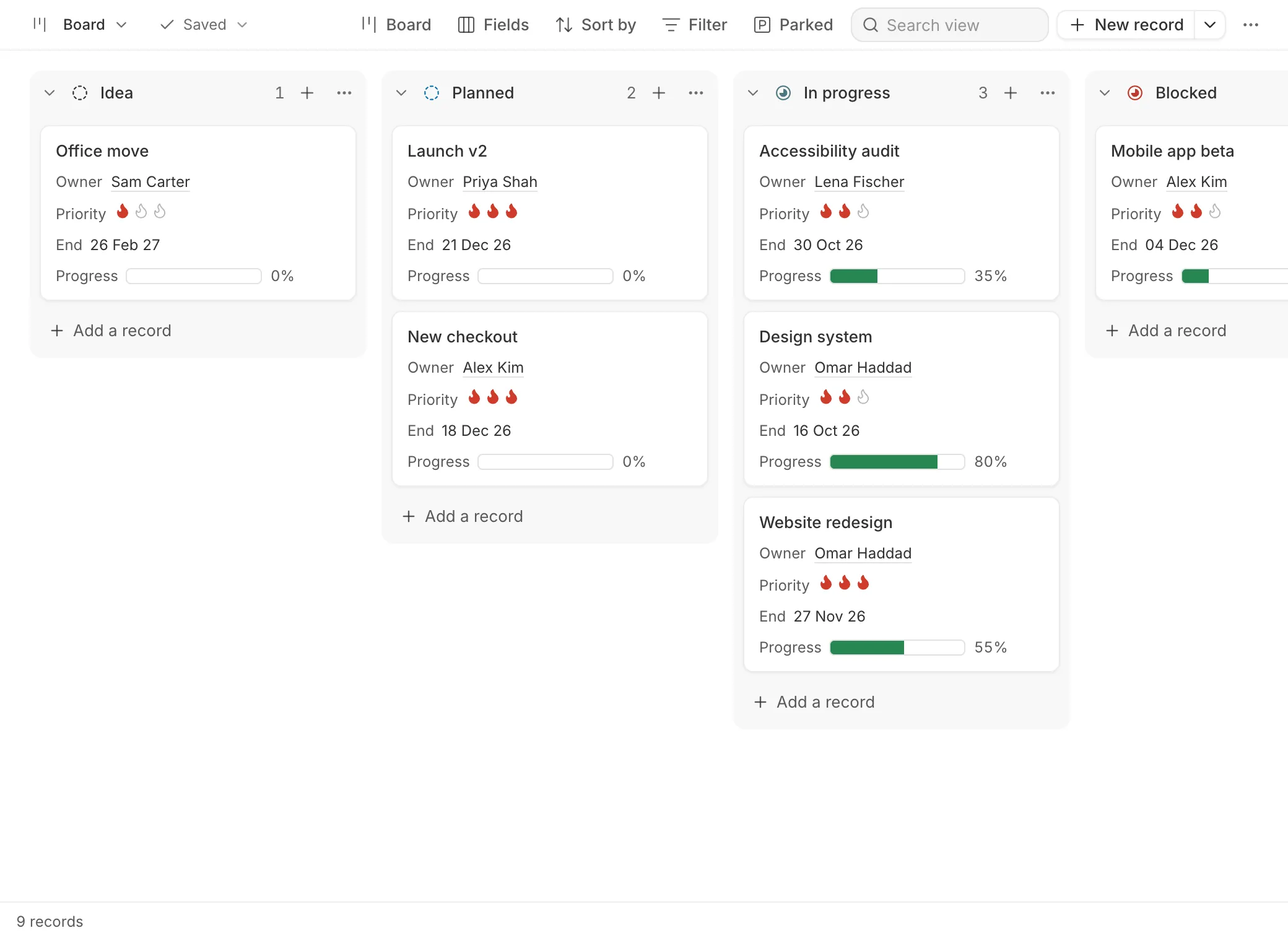
A board shows one column for each value of a property, such as the options of a status. Each record is a card in the column of its value.
Set up a board
Section titled “Set up a board”In the board settings, Columns & rows sets how the board puts its cards:
- Columns: the property that gives each column, and the order of the columns. A select, checkbox or text property works well. Use Add column level for up to three levels: the board has a column for each combination, and the name of an outer level shows once above its columns. For example, columns by status, then by area.
- Rows: use Add rows to make a grid. For example, rows by importance and columns by status. The row names show at the left and the column names at the top. Use Add row level for up to three row levels. Remove all row levels for a board with columns only. Drag a level to change its place.
- Swap columns and rows: the rows become the columns, and the columns become the rows.
- Hide empty rows (on by default), Hide empty columns (off by default) and Show counts.
Turn on Field names on cards to show the name of each property on the cards.
Use the board
Section titled “Use the board”- Change a value: drag a card to another column. BaseStudio sets the property to the value of that column. On a board with rows or more levels, drag a card to another cell to change all of its values in one step. The card menu also has Move to row.
- Change the order: drop a card between two cards. The board keeps that order. While the view has a sort or a search, it cannot keep a manual order, and the board tells you how to remove the sort.
- Add a record: type a name in Add a record at the bottom of a column and press Enter. The new record gets the value of that column, and the field stays ready for the next name. To open the full New record form, select + at the top of the column.
- Hide a column: the board does not show it. This setting is saved in the Base, so it applies on all your devices.
- Collapse a column: the column becomes narrow. This setting applies to this computer only. A column whose option has the status category Done starts collapsed. On a board with rows, you can also collapse a row.
To set the order of the columns, change the order of the options of the property. See Properties and column types.