Show records as bars between a start date and an end date, with milestones, dependencies and sub-items.
A timeline shows each record as a bar from its start date to its end date. Use it for projects, plans and schedules.
Set up a timeline
Section titled “Set up a timeline”When the view has no date settings, the timeline asks you to choose them. In the timeline settings:
- Color by: Automatic (status), Neutral, or a property whose option colors color the bars.
- Start date and End date: the date properties of each bar. A record with no end date shows as one day. When you choose a start date and the view has no end date, the matching end date is chosen with it.
- Opens at: the scale that the view shows first: day, week, month, quarter or year.
Open More for the settings that fewer timelines need:
- Bar label: the property that shows on each bar. By default, the bar shows the record’s name.
- Progress: a number property that fills part of each bar.
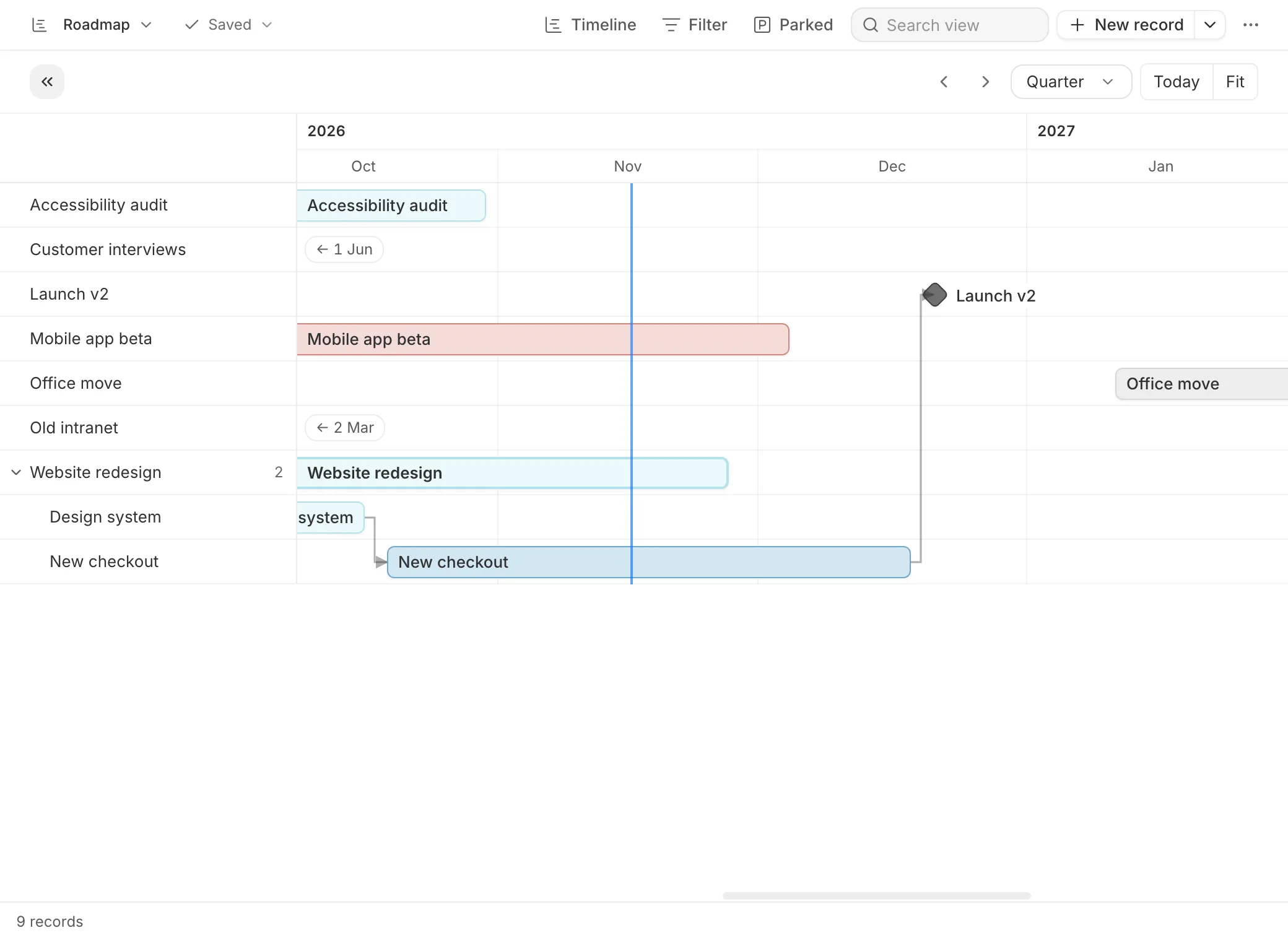
- Milestones: a checkbox property. A record that is a milestone shows as a diamond.
- Depends on: a link property that names the records that must finish first. Arrows connect the bars. An arrow is red when a record starts before a record that it depends on ends.
- Parent (sub-items): a link property that names the parent record. Sub-items show below their parent. A parent with no dates covers the dates of its sub-items.
- Moves keep to: Working days moves dates only to Monday to Friday.
Use the timeline
Section titled “Use the timeline”- Move a record: drag its bar. Both dates move.
- Change one date: drag the start or the end of a bar.
- Change the scale: choose day, week, month, quarter or year. The scale that you choose is kept on this computer.
- Select Today to go to today, or Fit to show all the bars.
- Weekends have a shaded background.
- Select a bar to open its record. Its context menu can also remove its dates.